
This manual describes CalcTape 6.1.0 for iPhone and iPad running iOS or iPadOS 15 or later. The screenshots show the app with example calculations. System buttons may be arranged differently depending on the device, system version and window size. Tap a picture to enlarge it.
The screenshots follow this website’s light or dark theme. In the dark website theme, they show the app’s Dark Night design. The five pictures in the theme comparison each keep their respective app design.
1. The idea: how CalcTape calculates
CalcTape combines a calculator with a tape and room for notes. Your entries stay in the document line by line, so you can review the calculation and continue working on it later.
- Calculate line by line: Each item has an operator and a number. Finish a block with =; CalcTape draws a line and writes the total below it.
- Comment on numbers: Use ABC to write what an amount is for. Text-only lines work as headings and notes. These comments do not affect the calculation.
- Correct earlier entries: Tap an earlier amount or operator and change it. CalcTape automatically recalculates the following subtotals and totals.
- Keep and reuse your work: Changes are saved automatically. Named documents can be reopened, duplicated, shared and printed.
A document can contain several calculations and text. Continue without a blank line to use a subtotal; a blank line starts an independent calculation in the same document.
Quick start
Open the Worksheet or a new document and enter 428 + 356 + 38 =. This gives 822.00 for transport and accommodation. Use ABC to add comments; the tape then looks like this:
+ 428.00 Return flights
+ 356.00 Apartment · three nights
+  38.00 Airport transfer
--------------------------------
+ 822.00 Travel and accommodation
Tap the apartment cost and change 356.00 to 416.00. The total immediately becomes 882.00. Continue below it with / 2 = to get 441.00 per person. All the original items remain visible. The copy icon beside the large result copies the number to the clipboard.
2. CalcTape user interface
The tape shows your entries, comments and results. Tap any position to continue calculating or change a number. Below the tape are the current result and the K1, K2 and ABC selectors. Tap the copy icon beside the result to copy the current number to the clipboard.
Press and hold the result bar to copy the grand total of the completed calculation blocks in the document. For example, two separate blocks ending with 120.00 and 80.00 give a copied grand total of 200.00. Intermediate totals that are continued within the same block are not counted again.
- K1 and K2 select two calculation keypads. The second level includes powers, roots and tax keys; you can customise both levels.
- ABC opens the normal text keyboard for comments, headings and named values.
- Undo reverses a change. When a change can be restored, the Redo button appears beside it.
- Share opens the output and printing options for the current document.
- The three-dot menu opens Settings and About CalcTape. On the Worksheet it also offers the save action.

iPad and landscape
On iPad, the document list can sit beside the tape. The sidebar button shows or hides it; in a narrow window it appears separately. The larger keypad offers more keys at once. Hide it with the keyboard-and-arrow key and tap the tape to show it again.

In iPhone landscape, the tape sits on the left and the calculation keypad on the right. K1/K2/ABC, result and copy icon share a row along the bottom. ABC switches to the text keyboard here too.

3. Worksheet
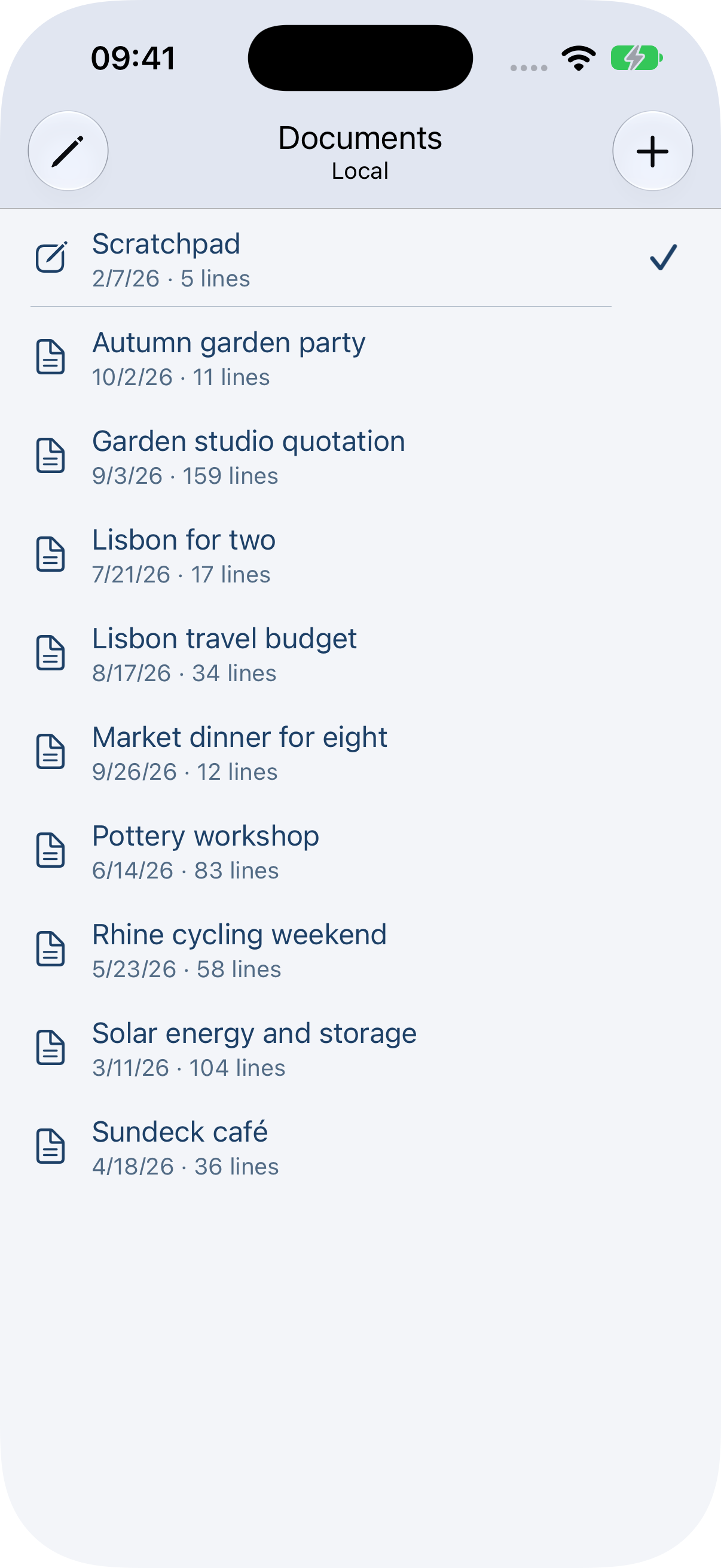
The Worksheet is the first entry in the document list. It has a writing icon and a fine divider below it. Use it for quick calculations; your entries are saved automatically.
To keep a calculation as a separate document:
- Open the Worksheet.
- Tap the three-dot menu at the top.
- Choose Save as Document.
- CalcTape saves your current entries as a new document and opens the copy. Rename it in the document list, for example “Lisbon travel budget”.
The Worksheet is kept. Select its entry in the list to return to it.
4. Creating new documents
On iPhone, the back arrow at the top left opens Documents. On iPad, use the sidebar. Tap + to create a blank document or tap an existing entry to continue editing its calculation.
Use descriptive names such as “Garden studio quotation”, “Pottery workshop” or “Solar energy and storage”. Each entry has a document or writing icon, the time of its last change and its number of lines, including empty lines. For iCloud documents, the line count appears once the file is available on the device.
5. Renaming, duplicating and deleting of documents
Tap Edit (the pencil icon at the top left) in the document list and select a document. Rename, Duplicate and Delete are available at the bottom. Finish with Done or the check mark. To prepare a variant of an existing calculation, choose Duplicate and edit the copy.
You can select several documents to duplicate or delete them together. Rename is available when exactly one document is selected. The Worksheet is protected in this editing mode.
The list also offers swipe actions: swipe an entry to the left to reveal Delete and More. More opens further actions for that document. The Worksheet has its own actions and cannot be deleted like an ordinary document.
Before deleting, CalcTape asks for confirmation and shows the document name or the number of selected documents. Confirmed files are moved to the system Trash. If that fails, the file is kept and appears in the list again. iOS manages deleted files; check the Recently Deleted area in Files for available restore options. Keep an additional copy of important calculations.


6. Calculations
Simple calculations
Enter a number, an operator and the next amount. = completes the calculation with a result. Powers take precedence over multiplication and division, which take precedence over addition and subtraction, including across the lines of a calculation block.
For example, 1 + 2 × 3 = gives 7.00. To multiply the sum of 1 and 2 instead, complete the subtotal first: 1 + 2 = × 3 = gives 9.00.
Example for dinner with eight guests: vegetables and herbs 28.40, cheese and olives + 18.90, bread and dips + 12.60, drinks + 32.00, dessert + 9.80, then =. Shopping totals 101.70. / 8 = gives 12.71 per person at two decimal places with the default “Only Results” rounding.
AC clears the current document. The delete key removes individual characters.
Powers, roots and reciprocals
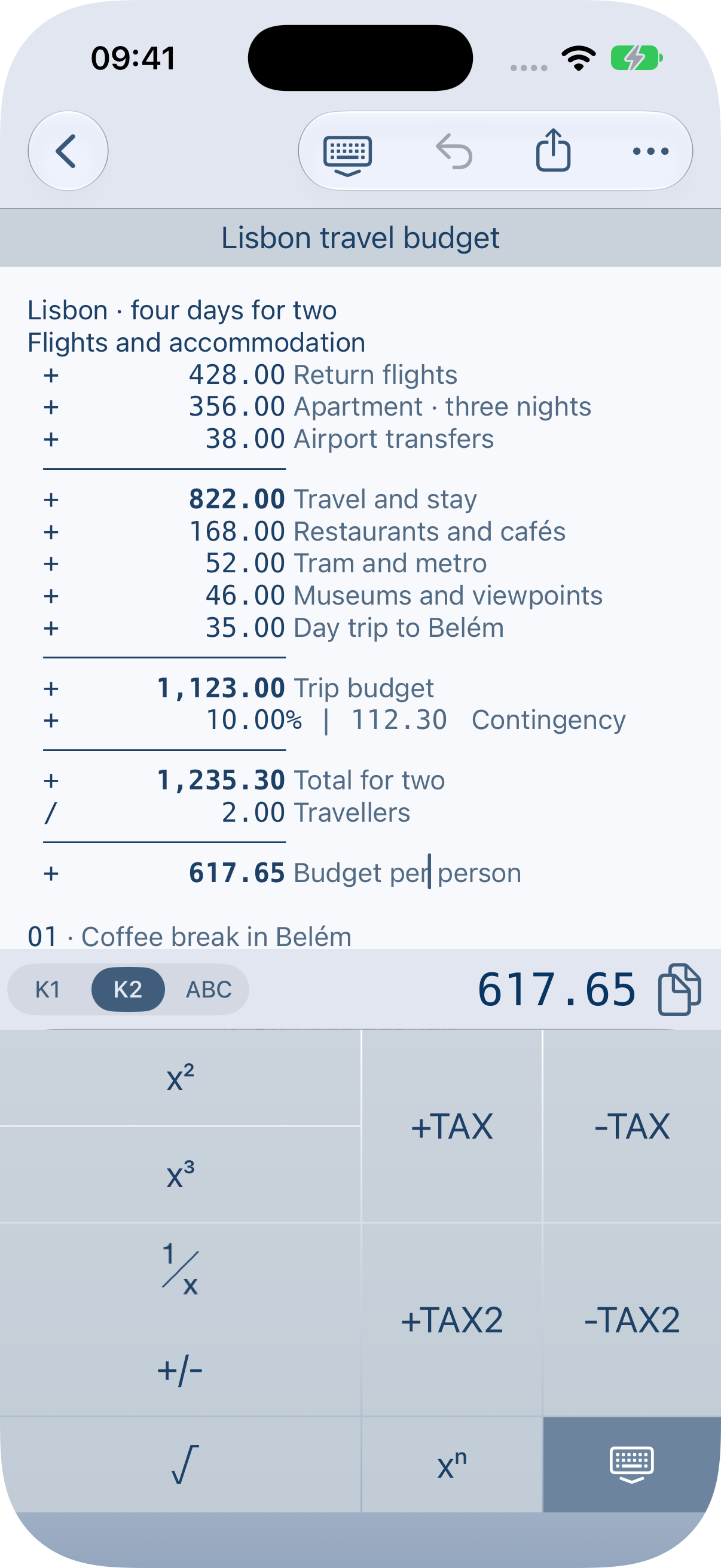
K2 or the System list in the button editor provides additional calculation keys. Their position depends on the selected keyboard layout.
| Key | Use |
|---|---|
| x² / x³ | Square or cube a value, for example 5 x² gives 25.00. |
| xⁿ | Raise a value to a chosen power: 2 xⁿ 4 = gives 16.00. |
| √ | Calculate the square root, for example 9 √ gives 3.00. |
| 1/x | Calculate the reciprocal: enter 4, then tap 1/x to get 0.25. |
| +/- | Change the sign of a value. |
Complete a preceding calculation with = when one of these functions should act on its subtotal.
Memory keys
M+ adds a value to memory, M- subtracts it, MR inserts the stored value at the cursor and MC clears memory. Choose a memory keyboard layout if these keys are not visible; see section 9.
The value used by M+ and M- depends on the cursor position. On a simple number line, CalcTape uses that line's value, including its sign: on - 3.00, M+ adds -3.00. On a named-value definition, it uses the defined value. On a text line, an empty line, a divider or a line containing an expression, it uses the current calculation block's total.
For example, after 10 + 5 =, put the cursor on the + 5.00 item and press M+ to store 5.00 in empty memory. Put the cursor on the blank line below the result to store 15.00 instead. MR inserts a fixed number; changing the source calculation later does not change that inserted number. The same memory can be used when switching documents.
Several calculations in one document
Press = once more after a result to start a separate calculation. A blank line separates calculations. Continue directly below a sum without a blank line to use it as a subtotal.
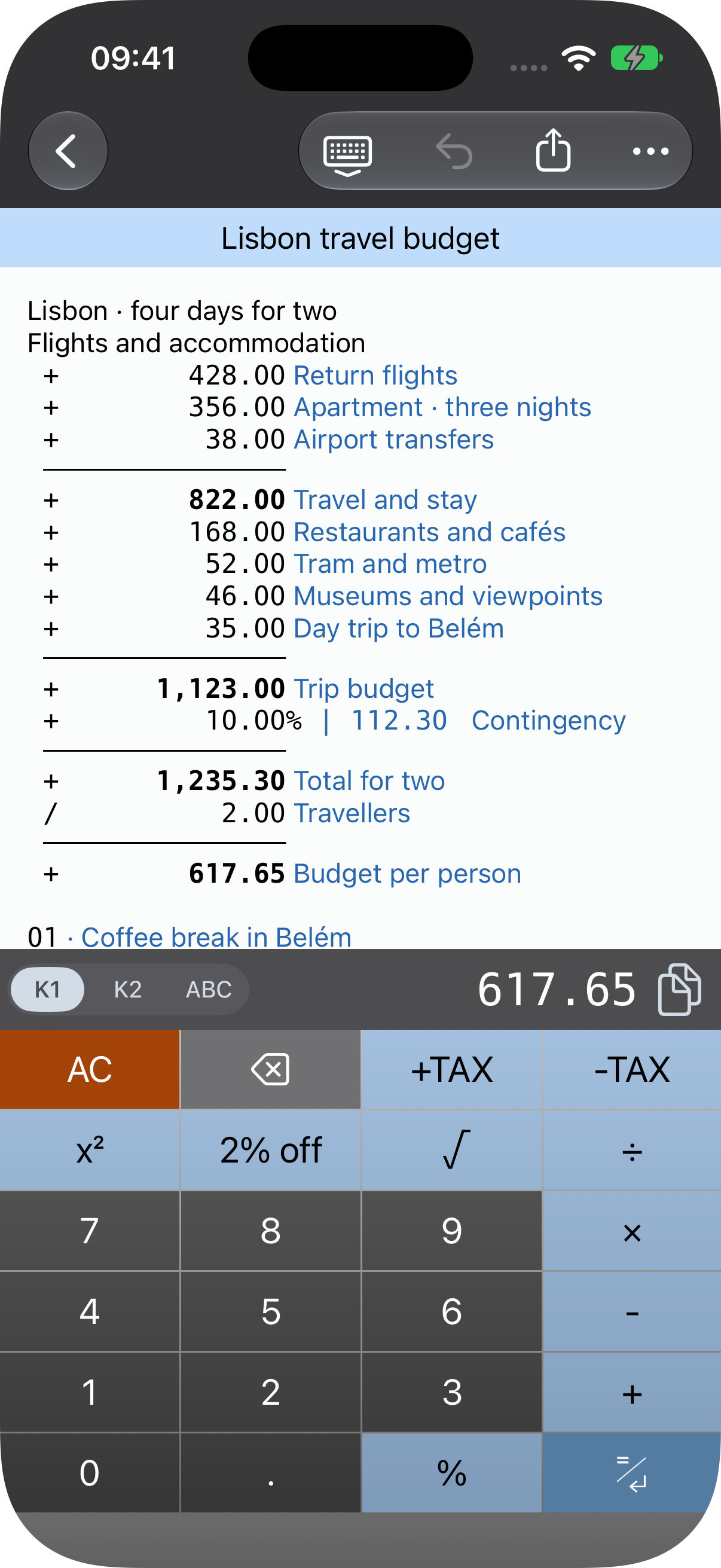
The travel budget has a subtotal of 822.00 for travel and accommodation. Daily costs take it to 1,123.00, and ten percent contingency makes 1,235.30. Dividing by two gives 617.65 per traveller. Every item stays visible on the same tape.
Modify calculations
Tap the number or operator you want to change and edit it with the keyboard. CalcTape automatically recalculates the results below. Changing the accommodation cost therefore updates the contingency, total budget and share per person as well.
To insert items, position the cursor where you need them. Use ABC to enter text or additional lines. The normal iOS text selection menu also lets you select, copy, cut and paste parts of a calculation or comments. Select the required text, then choose the action; tap the destination before pasting. A paste can be reversed with Undo.
Incorrect or unfinished entries are marked. Put the cursor on the affected line without selecting text and open the editing menu. Explain Error describes the problem, for example an undefined named value or division by zero. If the problem is a missing starting operator, the menu also offers + and - to correct it. Correcting the line updates the results below.
Percentage calculation
The % key applies a percentage to the calculation so far. The corresponding amount appears beside the percentage after |. + 19 % adds 19 percent, - 5 % deducts five percent and × 19 % calculates that share. Complete a percentage step with = before continuing with a multiplication or division of the resulting subtotal.
The garden studio example totals 2,603.50 net for materials, electrical installation and assembly. A five percent discount leaves 2,473.32. Adding 19 percent VAT gives 2,943.25 gross, and a two percent early payment discount reduces it to 2,884.38. These amounts use two decimal places and “Only Results” rounding.

To remove included tax, use the appropriate -TAX key or divide by the tax factor, for example / 1.19 for 19 percent. - 19 % instead deducts a discount from the gross amount. Press and hold a tax key to check or change its label and formula.
7. Adding notes and comments
ABC selects the text keyboard. After a number, write what it represents, such as “Apartment · three nights”. Full text lines divide a calculation into sections. Comments do not change the calculation.

You can also enter named values with ABC: define Hours = 8 and Rate = 65 on separate lines, then enter Hours * Rate below and press the calculation keypad's = key. The result is 520.00. Change a value at its definition to recalculate subsequent uses. Use a name only after defining it; error explanations help identify undefined or repeated names.
8. Saving a document
CalcTape saves changes to open documents automatically. You do not need a separate save button for normal editing. The document list opens your saved calculations; the Worksheet remains a separate entry.
Device and iCloud
Under Settings → Storage Location, choose Device or iCloud when iCloud is available. The document list shows only the active location; Local or iCloud in its title identifies it. Switching locations in Settings does not combine the lists or move all documents. A document that seems to be missing may be in the other location.
When CalcTape first offers Use iCloud?, accepting copies the local documents to iCloud, adding the device name to the copies. The originals remain on the device. This initial copy is different from a later storage change in Settings.
To sync between iPhone, iPad and Mac, use the same Apple Account and enable iCloud Drive. Files may take time to become available on another device. If iCloud is temporarily unavailable, CalcTape shows the local documents and explains the change. Your iCloud selection is kept, and the app returns to iCloud when it is available again.
Resolving an iCloud conflict
If the same document is changed on different devices before the changes have synced, CalcTape may report an iCloud Conflict. Choose Not now to postpone it or Resolve Conflict to compare the versions.
Preview the versions and select one or more versions to keep, then save your choice. Several selected versions are kept as separate documents. Before removing any unselected versions, CalcTape asks for a further confirmation because they will be deleted permanently. Check the previews carefully before confirming.
For important calculations, keep an additional backup. Share lets you keep a CalcTape file outside the app or transfer it to another device.
9. User keys
What are user keys?
A user key inserts a recurring formula or text. For an early payment discount, use the label 2% off and formula -2%. A comment such as “Shipping” or a custom tax rate works too. Use the normal keyboard characters -, * and / in formulas so they can be used directly by CalcTape.
Press and hold User Key or an operator or function key. Number keys, the decimal-separator key and the repeating delete key cannot be reassigned this way. The editor has System, User Keys and Layout sections. Select an existing user key to edit it or create a new one.

Adding a new user key
- Press and hold User Key or the operator or function key you want to assign.
- Select User Keys and tap New.
- Enter a unique Label and the Formula/Text to insert. Both fields are required.
- Calculate/Enter controls whether the insertion finishes the calculation or appends a new line.
- Save stores the user key. Select it in the list and save the assignment to the original keypad key.

System lists the supplied calculation and memory keys. Layout offers normal, double-width, double-height and double-width-and-height buttons where the keypad has room for them.

On iPad, a long press opens the same editor in a dialog over the calculation. System, User Keys and Layout work in the same way as on iPhone.
Choosing and managing keyboard layouts
Select the level you want to change with K1 or K2, then open Settings → Keyboard Layout. You can also open the layout list directly by pressing and holding the K1/K2/ABC selector. Choose a standard, function, memory or left-handed layout; the available layouts depend on the device and orientation. K1 and K2 can use different layouts.
Changing a key in a supplied layout automatically creates your own copy. The supplied layouts remain available. In the layout list, use Edit, select your own layout and choose Rename or Delete. Supplied layouts cannot be renamed or deleted. User keys can also be edited or deleted in the User Keys list.

10. Sharing and printing
Tap the share icon in the top bar and select one or more export formats:
| Format | Use |
|---|---|
| Text | Reuse the calculation as plain text, for example in an email or another document. |
| CALC File | Keep an editable .calc document for CalcTape on another device or as a backup. |
| HTML File | Share a formatted calculation that can be read in a browser. |
Continue to the iOS share sheet and choose Mail, Files or another compatible destination. CalcTape remembers the selected formats for the next export. For AirDrop, select exactly one format; AirDrop is hidden when several formats are selected. Use the print action in the share sheet with an available AirPrint printer.

Open a .calc file from Mail or Files with Share → CalcTape or Open in CalcTape. A file already in the active CalcTape storage is opened directly. A file from another location is imported as a copy; the source is kept. If its name is already in use, CalcTape gives the copy an available name rather than overwriting the existing document. German and English number formats bring their required separators with the file.
The local CalcTape folder is visible in Files → On My iPhone / On My iPad → CalcTape. Files in the other CalcTape storage location can also be imported as copies into the active location.
11. Settings
Open Menu → Settings. The main options are:
- Language: shows the selected app language. A change takes effect after the required restart.
- Storage Location: choose Device or iCloud; see section 8.
- Position on Open: open a document at File start, Last used position or File end; see Opening position.
- Theme: choose Standard, Day, Night, Dark Night or Classic; see Themes.
- Font Size: text size on the tape, also adjustable with a pinch gesture. Defaults are 16 on iPhone and 18 on iPad.
- Indentation and Item Counter: the number column's spacing and optional item numbering.
- Thousands Separator, Indian Numbering System and Decimal Places: number display.
- Keyboard Height: Small, Normal or Big for the iPhone calculation keypad in portrait. It does not change the landscape or iPad keyboard.
- Keyboard Font Size and Keyboard Layout: the calculation keypad's labels and arrangement. Key labels default to size 20; see section 9 for layout management.
- News: optional online news and the time of the last successful check; see News and version notes.


Opening position
Settings → Position on Open controls where the cursor is placed when you reopen a document:
| Setting | Effect |
|---|---|
| File start | Begin at the top of the document. |
| Last used position | Return to the most recent cursor position, including a position reached without changing the text. |
| File end | Continue at the end of the document. |
A new installation defaults to Last used position. When updating an existing installation that has no saved choice, CalcTape keeps the previous behaviour with File end. You can change the setting at any time.

Themes
CalcTape offers five themes for the tape, navigation and calculation keypad on iPhone and iPad. Standard is the default.
- Open Menu → Settings → Theme.
- Tap Standard, Day, Night, Dark Night or Classic.
- Return to Settings and close with Done or the check mark. On iPad, you can also tap outside the dialog.
Switching themes changes the appearance. Your calculations, comments and user keys are kept. Font sizes, keyboard height and keyboard layout can be set independently of the theme. With Standard, Day, Night and Classic, Settings and system dialogs follow the light or dark appearance of iOS or iPadOS. Dark Night also makes these dialogs dark, even when the device is set to a light appearance.
| Theme | Appearance |
|---|---|
| Standard | A light tape, muted blue-grey comments, white number keys and darker function keys. |
| Day | A light interface with blue comments, pale blue function keys and a red AC key. |
| Night | A dark navigation bar and grey number keys with white labels. The tape stays light, with blue comments. |
| Dark Night | A dark tape, document list, navigation and keypad, with light text and clearly visible comments. Settings and dialogs also use a dark appearance. |
| Classic | A cream-coloured tape with green comments, dark navigation and light grey keys. |
The following screenshots show the same travel budget with transport, accommodation, daily expenses and a ten percent reserve.




Rounding
Rounded offers three options:
| Setting | Effect |
|---|---|
| Not Rounded | Values are not rounded to the selected decimal places. The setting supplies a minimum number of decimal places; additional places are shown when present. |
| Only Results | Results are rounded to the selected decimal places; continuing uses that rounded result. This is the default. |
| Results and Lines | Values on individual lines are rounded too. |
For example, 100 / 3 = with Only Results and two decimal places gives 33.33. Following it with × 3 = gives 99.99, because the calculation continues with the rounded subtotal. With Not Rounded, the division displays additional decimal places, and an entered value such as 1.23456 keeps those places. Calculation precision is finite, up to 34 significant digits.
With Results and Lines, entered items are rounded as well. Choose the rounding setting before using a calculation as a template. For percentage calculations, CalcTape first rounds the percentage amount when result rounding is enabled, then uses it to calculate the resulting total.

News and version notes
After an update, What's New in CalcTape shows the notes for that version once. These notes are included with the app and can be read offline. A new installation opens the calculation tape directly. The optional online-news question appears on the third app launch. Returning from the background does not count as another launch. A choice you have already saved is retained.
Yes, get news enables the optional checks; No, thanks leaves them off. Neither choice restricts calculations. Calculation contents are not sent.
When checking, the server receives the IP address, time, app version, iOS version, and active app language. The linked privacy policy explains how these details are processed. Calculations and document contents are not sent.
Under Settings → News, turn Get News on or off at any time. Turning it off also cancels a running check. Last Checked shows the time of the last successful check, or Never if none has taken place. Privacy Policy opens the corresponding webpage. With permission, CalcTape checks when it starts, at most once in 24 hours. Calculations and the included version notes remain available without an internet connection.

iPad settings
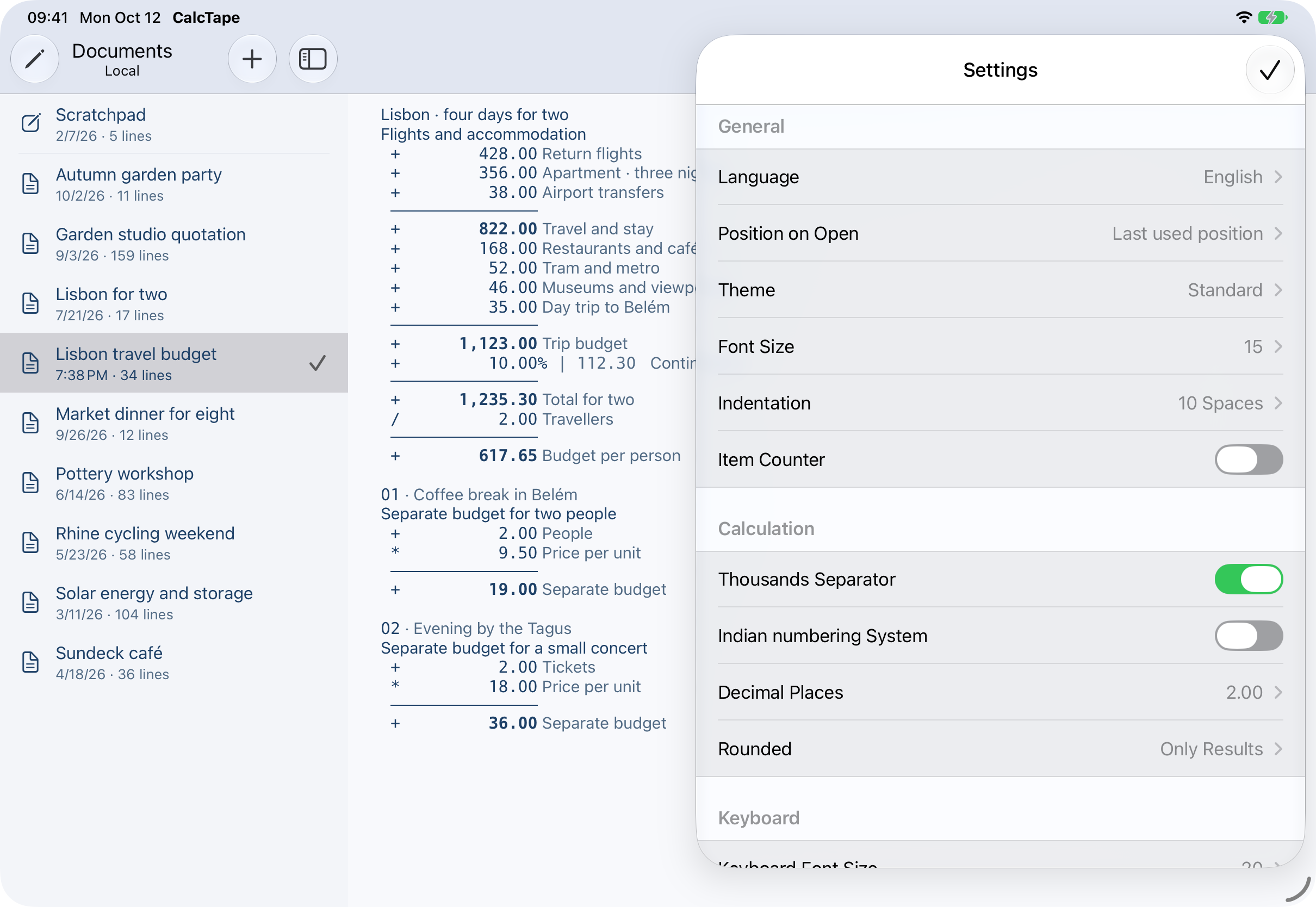
In 6.1.0, the settings dialog uses more space. The calculation keypad is hidden while it is open. Subpages keep the larger dialog area. Close with Done, the check mark or a tap outside the dialog. Closing Settings, About CalcTape or a layout or button editor returns focus to the tape and shows the calculation keypad.
12. Opening files and getting help
Version 6.1.0 reads CalcTape files encoded as UTF-8, Windows-1252 or UTF-16. Invalid characters may appear as replacement characters. A file using a newer unsupported CalcTape file version is rejected with a message. After a loading error, the affected file is not overwritten; use a compatible app version or an intact copy.
Menu → About CalcTape contains the app version, this manual, privacy information, Third-Party Notices and support contact. License texts can be expanded and copied. If a mail composer is unavailable, CalcTape shows support@calctape.com and a Copy address option.
Still have questions? Write to support@calctape.com or back to the manual overview.