
A quote is rarely a single number. Materials, working time, a surcharge for small parts, VAT and perhaps a cash discount – every item has its reason, and that is exactly what gets lost on a desktop calculator. CalcTape writes the calculation like a tape: every item stands there with its comment, subtotals and percentages refer to what is above them. And values you need more than once get a name: the hourly rate is written once at the top and works wherever it appears.
The example calculation
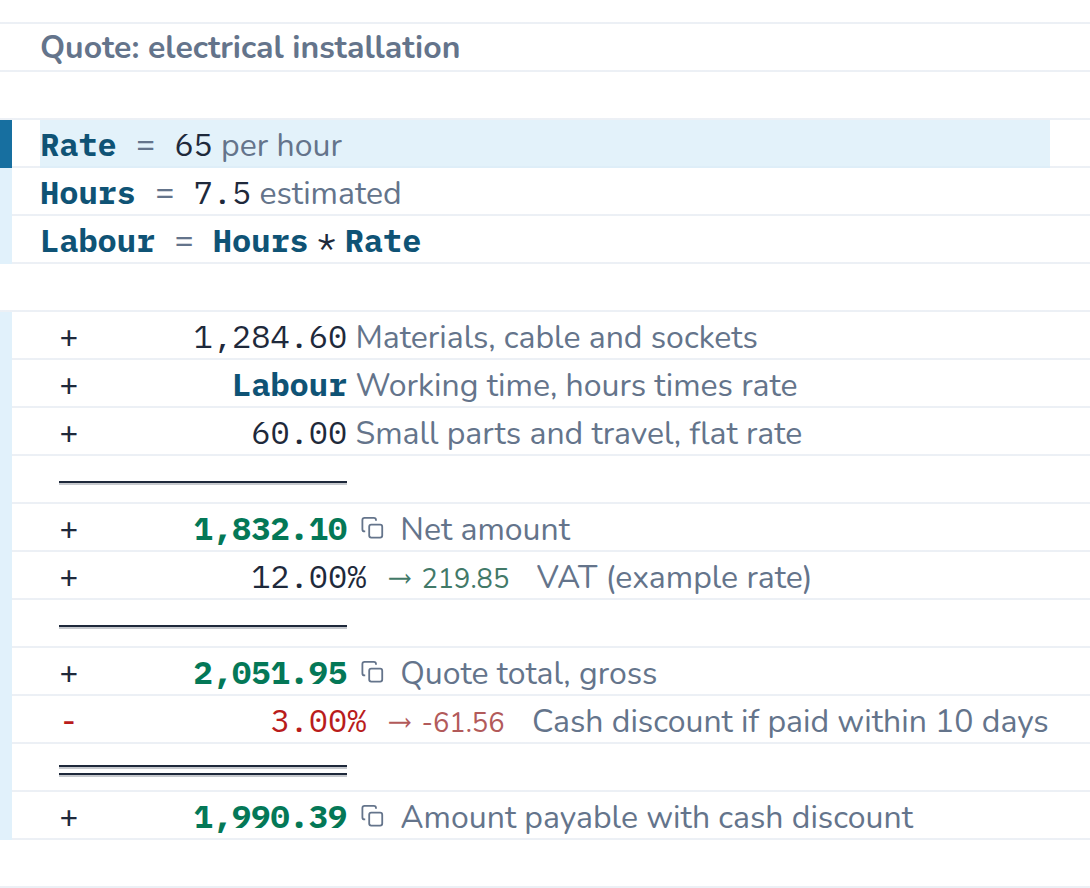
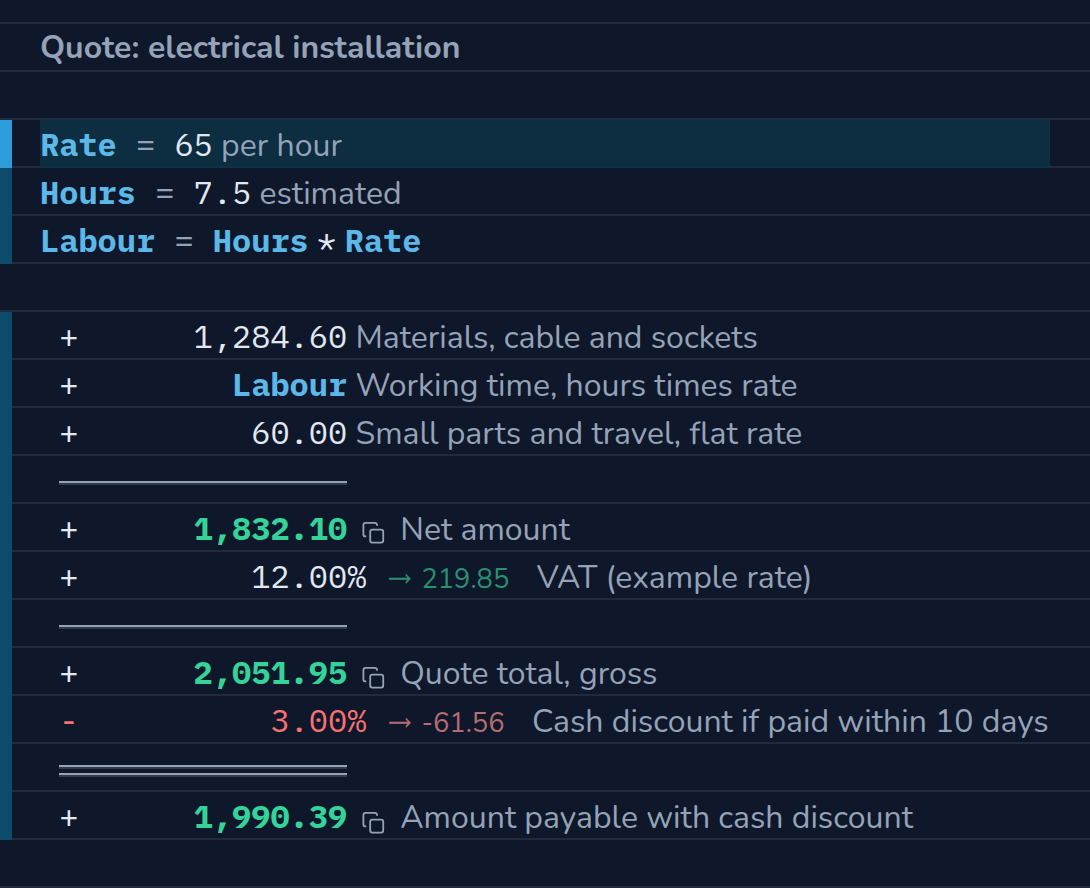
A tradesman prices an electrical installation: hourly rate and hours as named values, the labour cost as a formula of both; then the materials, a flat surcharge for small parts and travel, and VAT on top. At the end you see what is actually due when paying with the cash discount. Change the rate or the hours – the labour cost and every sum below it recalculate.
The calculation as text
| Entry | Result | Comment |
|---|---|---|
| Rate = 65.00 | per hour | |
| Hours = 7.50 | estimated | |
| Labour = Hours × Rate | 487.50 | |
| 1,284.60 | Materials, cable and sockets | |
| + Labour | 487.50 | Working time, hours times rate |
| + 60.00 | Small parts and travel, flat rate | |
| = | 1,832.10 | Net amount |
| + 12 % | 219.85 | VAT (example rate) |
| = | 2,051.95 | Quote total, gross |
| - 3 % | −61.56 | Cash discount if paid within 10 days |
| = | 1,990.39 | Amount payable with cash discount |
What the calculation shows
- Named values, set once.
Rate = 65is written at the top; the labour cost is a formula of it. A different rate, other hours – change one number and everything below follows. - Every item carries its comment. “Working time, hours times rate” still explains the 487.50 € a year from now – without recalculating.
- Subtotals in the right place. The net amount is visible before tax is applied to it. When comparing with a competitor’s quote, that is the number that counts.
- Percentages refer to the running total. VAT is calculated on the net amount, the cash discount on the gross amount – just as the invoice will show it later. CalcTape writes the percentage amount beside the rate.
- Rounded commercially, to the cent. Percentage amounts are rounded before they enter the total – in the end every cent agrees with the accounts.
How to do it in CalcTape
- Named values first:
Rate = 65,Hours = 7.5, then the formulaLabour = Hours * Rate– that is how named values work. - A blank line, then the items:
1284.60 Materials,+ Labour,+ 60 Small parts– a name counts like a number. - The
=key (or Enter) sets a subtotal – as often as you like; if you would rather write, type four dashes in a line. - For the tax use the preset tax key or type
+ 12%; the cash discount is a- 3%. - If a number is wrong, click into it and change it. Everything below recalculates at once.
Reuse as a template
Save the calculation as a file once it stands. For the next quote open it, swap hours, rate and materials, and print or copy the result with formatting into your quote letter – comments in green, amounts in columns. Several quotes side by side and your own keys for your hourly rates belong to the Pro version, the Excel export to Pro on the Windows desktop; the calculation itself works in every edition, also free in the browser.